Thoughts on Learning DVORAK (Part 2)

27 11 2011

Back in September I wrote a rather long post on my experiment in switching to the DVORAK keyboard layout. I almost gave it up a short time after, as my progress in increasing my speed was basically nada. However, I stuck with it and my speed has slowly increased. It’s now safe to say that my DVORAK typing speed has matched my old QWERTY speed, but not yet surpassed it by much (I’m still improving).

Overall progress for the first 70 days,


How long does it take to become proficient in DVORAK?

In my case: 3-4 months to get back to my old QWERTY level of 80-90WPM. I still hope to surpass 100WPM average, something I never did in QWERTY, but I’m not really concerned about it anymore or actively striving to reach it. In fact, keyboard layouts rarely cross my mind lately, the only reason I’m writing this post is because it’s had a half finished version in my drafts for a month. I’ve also been thinking about finishing up a typing program I hacked together, but that’ll be another post.

How did you get passed the 60 WPM barrier?

I’ve seen several posts on forums of people complaining of being stuck at 60WPM for weeks or moths (or in some cases, forever). I’m not sure what it is about that speed that causes such a learning barrier, but I was stuck there for quite a while as well. A lot of people say working on accuracy is the key, but I found that it didn’t make much difference and made typing more frustrating since I was always trying to monitor myself for making mistakes. If I had to make a guess about why this barrier exists, I would have to say that it’s because of weak keys messing up your typing rhyme. At this point there are no letters that slow down my typing, but back when I was stuck at 60WPM I remember some keys were always a lot slower to type. My advice if you’re stuck at 60WPM: focus on any keys that you hesitate on. Also, expect progress to slow down. When you start off learning you’ll be gaining 5 WPM in a day, but once you get passed the 60 WPM barrier it’s a slow logarithmic curve.

Do you still practice typing just for the sake of typing?

No. I spend a few minutes on keybr.com and typeracer every few days in order to track my progress and because, for whatever reason, I actually find it sort of fun. It’s like a video game, you try and surpass your old high score with concentration and skill. But I haven’t actively practiced typing for long periods of time since September. Once practicing typing gets boring, in my opinion you should give it up and go type stuff instead. Chat with your friends on IM, chat with strangers, write a blog, write a story, write a book, write a program, write reviews on movies and restaurants, write a wiki entry about the t-shirts worn by your favorite character in the last episode of a TV show, write posts on forums. There’s plenty of stuff to write about; don’t waste too much time repeating gibberish from Mavis Beacon.

Can you still use QWERTY?

As proficiently as before? No. I can still surpass 60WPM on QWERTY, but I also have a habit of looking at the keyboard again. Unlike DVORAK, when you’re forced to use someone else’s computer, you can just glance down at the keys when you forget where the single quote or underline character is. This concerned me quite a bit when I wast first starting to learn, but after I got good at DVORAK I quit caring. 95% of your typing is going to be on a computer you either own or work at all day and have the ability to customize any way you want. I should probably have a QWERTY weekend once a month to ensure that I don’t completely forget the muscle memory, but I’m not really concerned about it. If you really need to use QWERTY a lot, you’ll be able to type fine in both layouts. It’s the human desktop cleanup wizard: you remember what’s important and forget what you don’t use or think about. It just depends on how important QWERTY is to you. Not switching to DVORAK because you’re afraid you’ll suck at QWERTY is like not wanting to switch to Linux or Mac because you’re afraid you’ll suck at Windows. You’ll be fine, and even if you do suck at Windows, take pride in the fact you’re skilled in something that’s a superior version.

Do you still use QWERTY?

Not when I don’t have to. Cases I still use QWERTY,

Shared computers at work that I’m not using for a long period of time (otherwise I’ll switch it to DVORAK and then back to QWERTY when logging out). Remote Desktop will automatically set the layout on the remote computer when you log in, but not if the computer is already logged in and you’re just switching back to the session.

Gaming. Still need the good old ASDW keys for control.

Phone keyboards. I could probably find a DVORAK setting for Android, but I prefer to just stick with the onscreen QWERTY.


Random Stuff

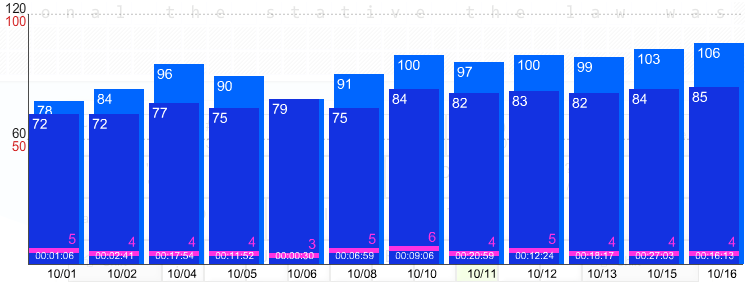
Here are some logs from keybr.com,

9-15-11 to 10-02-11,

10-01-11 to 10-16-11,

10-23-11 to 11-26-11,

Also some videos of typing,

http://youtu.be/hxsmW9OWVFQ

http://youtu.be/MEpfAvA-wOo


Building a MiniITX File Server for under $300

20 10 2011

Despite an old HP desktop I got used at a swap-meet for $10 still going strong, I’ve wanted to replace it for a while. Having a pile of computers on your desk makes you start to appreciate the little things that are important in small home file server.

  • Backups. If the hard drive in my old HP died today, I’d loose gigabytes of pictures, music, code, and random writings. I could throw a second drive in it, but then you still risk having the drive die as it’s getting just as much on-time as the other one.
  • Noise. There are currently 3 full size desktops running on my desk (regular use desktop, the HP server, and a friend’s desktop that acts as off sight storage for him). Most of the time, fan noise doesn’t bother me. it in fact helps me sleep easier. You know you’ve been around computers too much when the gentle blowing of computer fans and occasional hard drive clicks lulls you to sleep like those sound of nature noise CDs they sell on late night TV commercials. There are still occasions when I prefer a bit of silence though.
  • Heat. At one point, I was running 4 monitors (2 of which CRT) in addition to the three desktops previously mentioned, plus a router and piles of chargers and other electronic devices. With everything on, I could literally feel the temperature change walking into my room (probably 2-5 degrees). Piles of servers are great to play with, but unless you have a dedicated server room, cooling becomes an issue sooner than you may think.


MiniITX form factors make a great size for a cheap and small computer. Specifications for my new file server,


The downside of this build: I hate the case. Despite having decent reviews, it was just one thing after another when putting it together. First, there are 4 plastic snaps that hold the front panel on. The very first time I tried to remove it they were so brittle that one of them broke off. Not a huge deal, still stays on fine, but if you do have the misfortune of getting this case, be careful with the plastic snaps. The second fail was when I tried to install my 5.25″ to 3.5″ hard drive bay for the second hard drive. I vastly prefer cases that have the drive bays extended to the front of the case, and instead this case has about a 1″ gap with a hole for the CD to come out. I removed the flap and CD extender button, but the hole is about 1cm too small to fully remove my external drive. I’ve considered cutting a slice out of it, but I haven’t gotten the courage to mangle it up yet. It’ll be hard to make it look decent after that. Finally, when I got everything installed and powered it up, I found that despite being a small 150 Watt power supply, the thing is loud. The 80mm fan isn’t terribly quiet either, and the case has no sound proofing whatsoever. The power supply also generates a decent amount of heat for the size. I’m considering replacing both the PSU and the fan, but for now I’ll live with it. Basically: don’t get this case. Spend the extra $50 and find one that’s quiet and has a more efficient power supply, the total cost will still be below $300.


For software I put Xubuntu on it, though I’m considering swapping it out for something else. No hardware problems though, everything worked fine after install. I’ll post some updates on software later.


Build pictures


New Gadget: Amazon Kindle 3 Review (Part 2)

29 09 2011

Now that my Kindle 3 (with keyboard) is less of a new gadget and more of an everyday use object, I thought I’d add a few more comments to my previous review.

The one issue that bothers me the most with the Kindle is the inability to quickly and easily determine book sizes when shopping on Amazon. When you go to a bookstore and hold the physical book in your hand, you instantly get a rough idea of the size. I’ve read 1,000 page paperbacks and I’ve read 150 page paperbacks; when I’m purchasing a book I’d like to know what category it falls into. Unfortunately, the page is a terrible unit of book size measurement. If you change the font, line spacing, or word spacing on your Kindle, the number of ‘pages’ in the book will reflect the new settings, so page numbers become fairly meaningless. Some Kindle books do show a fixed page count when you bring up the menu, but that’s only after the book has been purchased and downloaded to the Kindle. In order to tell the length of a book, you need to resort to looking up the paperback version and seeing how many pages it is (and hoping it’s a standard sized paperback). The best solution would be to start posting book sizes in something like word counts, and letting the Kindle users slowly adjust their sense of size accordingly.

Another minor grievance I have is with the social networking feature of the Kindle. You can highlight a section of a book and post it as a quote to Facebook or Twitter. However, if you save that quotation to your Kindle quotations and post it from that part of the Kindle, it doesn’t reference the book in the social media quote, but instead just says it came from “my content” or something like that. You can always jump to the location in the book where the quotation was taken and then quote it on social media, but it’s just annoying you can’t make it quote correctly from your saved content.

Overall though, the Kindle is still working great.


Thoughts on Learning DVORAK (or other alternate keyboard layouts)

15 09 2011

About 6 weeks ago I decided to learn DVORAK as a geeky challenge and with the hope of improving my typing speed in the process. I’ve been putting off writing a post about it until I had a decent amount of experience with it, which I believe I now have (this post was written in it).

Background

First off, for background information, my QWERTY typing skills are an odd mix that induce both cringes and amazement from people seeing me type at my best. I average around 80 WPM on QWERTY, but the catch is, I do that with mostly two fingers and a lot of hand motion. I never look or think about the keyboard in QWERTY, but I never mastered the correct touch typing technique. For common letter combinations I use multiple fingers, or for some of the letters near the side of the keyboard (like ‘a’ and ‘z’). However, I realized that using this typing method I’m limited directly by my physical hand movement speed. When typing and pushing 100WPM my hands are moving all over the keyboard at a rate too fast to keep up for long periods of time, even though my mind is quite capable of realizing where the keys I want are faster than that. I also am all too aware that hand problems are very too common for someone like myself who spends all day at a computer; learning proper touch typing might avoid problems in the future (carpel tunnel seems to run in my family).

Once committed to the idea of forcing myself into using proper touch typing technique, I decided that I might as well go extreme and learn a more efficient keyboard layout at the same time. If I had the chance to do this again, I may have considered COLEMAK instead of DVORAK, and I recommend looking into both if you’re just considering learning a new layout (but only commit to learning one). However,  DVORAK became my default choice since at the time I didn’t know COLEMAK existed. For those that don’t know, DVORAK is a keyboard layout based on putting common keys on the home row, vowels on one hand, and encouraging hand alteration. The world record typist Barbara Blackburn used the DVORAK layout. It uses far less hand and finger motion that QWERTY, but the ability to increase typing speed with this layout seems to depend on the individual.

How to learn a new layout?

On to the actual learning! There are two major schools of thought when learning a new keyboard layout:  the full time alternate layout group and the alternate layout by night crowd. The first group insists that after an initial few days of learning, you should switch cold turkey and only use DVORAK. This means no touching QWERTY at all, since they believe that even using it for a short time will confuse your new muscle memory and keep you from improving quickly. This method is very painful for the first few weeks, but your improvement will be much quicker. Another risk of this method is losing the ability to type in QWERTY. Not typing for a few months will ruin your typing speed to begin with; typing only in a new layout for months will make it even easier for your old skills to degrade while your new ones slowly grow.

The second school of thought is for the more pragmatic individuals. Staying a QWERTY user for some things (such as work) while working on developing your DVORAK skills by day allows you to not sacrifice productivity during the day and still retain your old QWERTY ability. Taking 10 minutes to type an email that previously took you 1 minute may not go over well at your work in the first couple weeks of your learning period. The downside is that your DVORAK improvement will be much slower, and according to some critics, may peak and never allow you to surpass your old typing speed in the new layout. I went with this learning method due to the inability to sacrifice my productivity much in the first few weeks; I’ve come to believe that it has both pros and cons, but works best for me. You can always combine both methods by starting out practicing DVORAK only in low stress environments until you get to a comfortable speed before switching over full time.

From my experience, learning DVORAK can be divided into 3 phases. Phase 1 is the initial learning of the layout, phase 2 is building muscle memory and letting typing require less thought, and phase 3 is building speed. I’ll describe my experiences at each phase of development.

Phase 1: Learning the Layout

Phase 1 is by many considered the most painful phase of learning, and I’m afraid I would probably have to agree. In this phase, you start out knowing nothing and must slowly learn the keyboard locations one letter at a time. I spent about a week in this phase,  I would learn one row of letters a day and then it took another few days of practice before I could reliably find letters, albeit very very slowly. My advice for this phase is to focus on learning a few letters at a time, and then just lots of practice until you can reach 10-20wpm. The best way I can describe this phase is feeling like a stroke victim. You’ll know what letter you want to type, know that in QWERTY it would be second nature, but now it takes you literally seconds to recall where it is and command your fingers to move there in a painfully deliberate act. It’s like learning to walk all over again, or, well, type. For the first few days try printing out a DVORAK chart and having it near the keyboard, but don’t bother trying to rearrange keys on the keyboard, it won’t make this stage any less painful and it’s better to start off avoiding the habit to look at the keyboard. During this phase, don’t pay attention to speed, it will frankly be discouraging. Just focus on accuracy and practice a few hours a day.

Phase 2: Learning to type what you think rather than think about how to type

Phase 2 will be somewhat painful as well, but the worst is over and the transition mark is clear. At this point, you know were any key is, even if the recall speed is slow. Sometimes you’ll hit the wrong key, especially when trying to type faster, but your accuracy will increase along with your raw speed. This might actually be the funnest part of the learning process, because the slope of your learning curve will be at it’s maximum (yes, I did just make a derivative reference, woo calculus!). To give you and idea of the improvement possible within this phase, here are my first results from practice on www.keybr.com. Note that this page uses all lowercase and no punctuation, and additionally has a lot of repeats of common diagraghs and trigraghs. I enjoyed practicing on it, but the word per minute rates are skewed a decent amount higher than typing normal text.

Phase 2 is also where you will most notice the odd aspects of typing and your brain if you were already a high speed typer (60wpm+). I’ll point a few things out I found interesting, and which really gave me some insight on slow typers and the things they struggle with.

I can’t think about typing it QWERTY and type well. I just do it; I don’t know where the ‘b’ key is, I just type brown and bat without a moment’s thought to key locations. If I try to think about where the ‘b’ key is, my typing actually gets slower and I may actually get it wrong. In DVORAK phase 2, you’ll be thinking about where each letter is, and it will actually make thinking about what you’re typing more difficult. This is the reason I still used QWERTY at work a lot during this stage. The raw speed on a typing test was fine, but it took a lot of thought to type and made it harder to focus on what I was typing rather than the process itself. People who hate typing often do this, they feel that they can’t both think and type at the same time, while other people can do it as naturally as writing or speaking, almost using it as a beneficial aid in their though process.

I also think phonetically while typing in many cases. Some people get bogged down spelling words, while I tend to type as if I’m transcribing my current thoughts to text as I think them. I don’t give the least bit of thought to most spellings, and I can be a terrible speller because of it. On the plus side, I can do things like stream of couscous this entire blog post in no time at all. When you’re in phase 2 of DVORAK, you’ll be thinking in letters more than sounds or words, and in fact overcoming this barrier is one of the primary things that define the transition from phase 2 to phase 3.

In summary, the transition to what I call phase 3 requires the following,

  • The ability to type without thinking about how to type (your fingers just find the keys)
  • The ability to type words without thinking on a letter by letter basis, but rather phonetically sounding things out as you type or just knowing the spelling and being able to reproduce the word without much thought.
  • A slow in learning. Phase 2 you can rapidly improve as you approach phase 3, but once the techniques are mastered progress will slow down.


The best way to get from phase 2 to phase 3 in my opinion is online chatting, forums, and general writing. Typing programs put you in the mood of blind copying, but that won’t help as much actually typing your own thoughts. Chatting helped me get proficient in QWERTY originally, and also helped with DVORAK.


Phase 3: Sharpening the subtle skills
Once you reach phase 3, typing feels natural and comfortable again, but your speed still won’t comparable to your previous speed. It will be slow but steady progress as some of the mechanics of things start to fall into place. I’m not sure there is a way to develop these skills specifically, but they are,
  • Rhyme: rather than typing in short fast bursts, you should be able to keep a relatively constant typing rhyme that will average out a lot faster than fast/slow typing alterations.
  • Hand look ahead: DVORAK is designed to maximize hand alteration based on the idea that while one hand is typing a letter, the other is getting into position to type the next. You can’t strive to improve this until you’re already typing in words and not individual letters.
  • Common letter combinations and words: Some words you will see so much, you’ll type them way faster than other things. Take the word ‘the’ in DVORAK, a fluid motion of rolling your fingers that even the slowest typer can tap out at over 150wpm once the motion is memorized and practiced a little.
  • Strength of certain muscles: pinkys are notorious for being out of shape for DVORAK, and may cause pain before it gets strengthened.


Phase 3 progress is slow, and I still haven’t reached my old QWERTY speeds. I quit using keybr.com much and switched to real world typing and a bit of www.typeracer.com, but here’s the current progress chart anyway. You’ll notice the practice times were only a few minutes, just to get a quick speed rating for that day, so the results aren’t nearly as accurate as the first chart.
I quit typing in DVORAK for a while; the speed bonus of QWERTY makes it tempting to switch back when you want to type in a hurry. This can also account for some of the slowness in improving lately.


Important Concluding Questions
How close am I to my QWERTY speeds 6 weeks from starting DVORAK?


I can average 80wpm in QWERTY, I can average 50-60WPM on those same tests with DVORAK. Maybe 70-80% old speed on complicated text (upper and lower case, punctuation), and I’m still improving, just not as fast as during what I call phase 2.


Has learning DVORAK made QWERTY speeds suffer?


There was a short period during phase 2 where I had a drop in speed, but now it’s as fast as ever. I still type in both layouts on a daily basis, partly due to the difficulties with switching layouts on servers and virtual machines I use at work. Sometimes I just use one layout over the other because I feel like (20% speed boost to type something quickly, games that work better with QWERTY, ect). I plan to stay fast in both layouts, and wouldn’t recommend letting your QWERTY skills get too rusty.


Was it worth learning?

This question must be evaluated several different ways. My original goal was to increase typing speed, but I’ve since mostly abandoned that. It’s quite possible that it will happen at some point, but I’ve come to realize it isn’t that important compared to things like being able to think about other things while typing (like what you want to type). DVORAK still feels a bit awkward and it’s very easy for me to just arbitrarily decide to use QWERTY all day. However, DVORAK does cause less hand strain and tiredness than QWERTY with most of the common letters being on the home row.

Overall, I enjoyed the little learning experiment and became a lot more familiar with different facets of typing and how we learn to do things subconsciousnessly. I’ve found the process fascinating and even wrote a program to log and analyze my typing to discover weak keys and typing trends. A person’s typing is so unique that several commercial programs use it for a biometric identification system on top of standard username and password login forms. The journey has been an enjoyable exercise, but the end result is probably not spectacular enough to warrant the switch if you just want to increase typing speed.

Eventually I’ll get around to posting an update here if I surpass my QWERTY speed with DVORAK, and my opinion might sway a little more toward the switching being worth.




Getting Back On HF

8 07 2011

I’m an extra class amateur radio operator, but haven’t touched an HF radio other than Field Day in several years. As ham radio always provides a plethora of little projects to work on, I decided to try and round up enough stuff to get back on the radio at my apartment by the end of the summer.

It’s turning out to be a decent amount of work (and I’ve barely started…). Since moving out from my parent’s place, my tool box and pile of junk parts shrunk to almost nothing, either since I left stuff behind or it was my parent’s to begin with. It’s the little things that kill you… audio cables, coax, connectors, adapters, drills, power poles… Basic plan is as follows.

Step 1: get a working HF radio going. I’ve got an Elecraft K2 that’s been collecting dust since Field Day about 5 years ago when, at around 3:00am, the receiver seemed to be experiencing deaf spots on 40 meters (or was it 20…). We swapped it out for another radio and I never got around to figuring out what happened to it. It’s possible that the front end got damaged from the other Field Day transmitter on a nearby frequency overloading it. It’s also possible the coils on the torroids just got jostled around on the trip and during setup, meaning it may just need to be retuned. There’s also a slight possibility nothing’s wrong with it at all and I just thought there was, so let it collect dust for half a decade not wanting to figure out how to fix it.

Step 1.1: build an HF white noise generator in order to test the receiver sensitivity across the band and to retune the filters. Couple of trips to Radio Shack and a few hours soldering, I managed to get this little gadget together. It sucks at high frequencies (anything above 40 meters), probably because I’m using a Zener diode with a little lower voltage than they said. I tried fiddling with the value of R1, but it didn’t seem to help enough to make it worth trying to unsolder the 1.8k I had on there.


I decided since I was going to all the effort of building it, I might as well stick it in an enclosure so it doesn’t get destroyed like most of my tiny perf board projects inevitably do if they get thrown in a box somewhere. I ran into a dead end when I was trying to figure out how to mount the PL259 connector when I don’t own a drill, a saw, or much of anything to cut through the plastic enclosure in the shape of a 9/16″ circle. Finishing it up will have to wait for a Tuesday when I can borrow some tools from someone to drill out the holes for the case.

I’m also retrieving the K2 from my parent’s house Tuesday (or sooner if I get antsy on Sunday). I’m really hoping that it’ll just work, or perhaps it just needs to have a hard reset and the filters retuned. Otherwise I’ll have to dig out some more junk and try to inject some signals that I can do signal tracing on and hopefully identify the cause of failure… that could quickly turn into putting a dead end to this plan and sticking the K2 back in a closet for another half a decade if it’s going to cost a lot to fix.

Backup plan, I’ve got a Yaesu 767gx also collecting dust. The thing is massive and I have no idea where I’d put it, the K2 is certainly easier to stick somewhere and use. Maybe I’ll drag both of them from my parent’s house to my apartment so I have a backup radio and something I can use to test the other with.

Step 2: Shopping for the odds and ends…

There’s a hamfest coming up in a little over a week, I’m hoping I can gather together all the little things I seem to be missing.

  • Coax (25 foot section, some short sections)
  • Red/Black heavy gauge wire
  • Power Pole power connectors
  • A dipole balun (or entire dipole, or other antenna I could hide near my apartment)
  • Alligator clips (always need them, never have them)
  • An SWR/Power meter
  • A decent pair of headphones (optional)
Step 3: Once I’ve got a working radio, plus all the odds and ends, I need to somehow get an antenna up. Luckily, this apartment is in a fairly decent spot for doing such a thing.
The bedroom window faces north, and happens to have a nice 8 foot block wall 15 feet behind the window (thick black line). Even better, there’s a large tree (green dot) right in front of the window, which will be great for concealing coax. The current plan is to throw either a 40 or 20 meter dipole up along the fence to at least get started again. Alternative/future plan includes trying to run an east/west dipole along the roof (no idea how I’d get up there, need a ladder), maybe a 20 meter east/west and a 40 meter in the back going north/south. I’ve got a few hundred feet of rope and copper wire, the only thing stopping me is the lack of coax and not having a balun, hopefully two things that will be remedied at the hamfest.


The Best of XKCD

16 05 2011

For anyone who doesn’t know, XKCD is the best geeky webcomic in existence. Some, however, are better than others, and with over 800 of them it’s easy for the best of the best to get lost in the crowd. Enjoy my collection of favorites.

He completely disassembled someone’s car at a Starbucks, because it was parked across two spaces. He was fired from radio shack, for building a deathray and vaporizing a customer. He got order for an office chair on Ebay, and sent an angry bobcat instead. He was thrown out of Microsoft for trying to feed a squirrel through a fax machine. His future girlfriend stole his hat, he stole a nuclear submarine from the Russians to fetch it. He is the most interesting geek in the world… HAT GUY!

72: Classhole (Hat Guy is my hero, so I include most of the good ones with him doing crazy stuff)

123: Centrifugal Force (James Bond is no match for Hat Guy)

217: e to the pi minus pi (More hat guy pranks)

322: Pix Plz (Hat Guy may break every law in the book, but he’s got his code of morality)

325: A-Minus-Minus (“Ordered office chair, got bobcat”)

374: Journal (Beginning of an awesome Hat Guy story arc)

377: Journal 2 (Dun dun DUN)

405: Journal 3 (“You made one mistake. You took my hat. I LIKE my hat.”)

432: Journal 4 (Aw, Hat Guy’s got a crush)

433: Journal 5 (“Remote mines under your car.” “Oh, those? I moved them to your garage before knocking”)

494: Secretary Part 1 (The tubes are clogged!)

495: Sectary Part 2 (“What the hell kind of apartment has a mote?” Hat Guy’s, that’s what kind.)

496: Sectary Part 3 (“You were fired from radio shack after you built a deathray and vaporized a customer?” )

497: Sectary Part 4 (Included just for the sake of including the entire arc)

498: Sectary Part 5 (“Upon review of your qualifications… we’ve decided to sentence you to death”)

506: Theft of the Magi (They need better communication in this relationship)

515: No One Must Know (Smooth)

542: Cover-Up (Think fast)

562: Parking (Hat Guy has a pet peeve for double parkers)

611: Disaster Voyeurism (Hat Guy’s definitely got a bit of a dark side)

792: Password Reuse (I’m fairly sure that’s Google’s real business plan right there)

Programming and Linux references,

138: Pointers (Terrible terrible typing of the datatypes…)

148: Sandwich (Real programmers just use Sudo su)

156: Commented (Or there’s the dual hand four finger # sign)

163: Donald Knuth (Hat guy’s code would be interesting to read)

178: Not Really Into Pokemon (If someone said that to me, I would strangle them with an Ubuntu lanyard)

196: Command Line Fu (Linux works fine! Now excuse me while I go rewrite the DHCP client so it’ll actually work on ASU’s network)

208: Regular Expressions (Regexp. Nuff said.)

224: Lisp (I prefer TCL hacks, but yeah)

234: Escape Artist (Yep, that’s me when programming)

287: NP-Complete (I once had a friend say, “don’t let your geekyness make you feel awkward. Use it to make other people feel awkward instead.”)

292: GOTO (Kernel programmers must always be prepared for the raptors. See 87)

303: Compiling (It sadly doesn’t work for scripting languages)

323: Ballmer Peak (It’s very delicate to obtain…)

327: Exploits of a Mom (Always be weary of SQL injection)

349: Success (True story, totally happened when I tried to dual boot FreeBSD)

378: Real Programmers (Real programmers browse the web with Vi)

456: Cautionary (This happened to me when I was 16. I relapse every few years.)

519: 11th Grade (In my case, it was TCL)

554: Not Enough Work

664: Academia vs Business (the hover over text is awesome)

Random Categories,

55: Useless (So true…)

69: Pillow Talk (Neither is optimizing cube crash playing algorithms)

87: Velociraptors (Always be prepared! For velociraptor attacks.)

135: Substitute (Now this is my kind of word problem)

165: Turn Signals (Best. Pickup line. EVER!)

203: Hallucinations (I know, right?)

206: Reno Rhymes (Long live the browncoats!)

227: Color Codes (I think when people ask my what time it is, I’m going to start answering in resistor color codes)

228: Resonance (Office life)

243: Appropriate Term (Or pencil eraser references)

249: Chess Photo (Awesome because people have been doing this ever since the comic)

275: Thoughts (Mental filter fail)

281: Online Package Tracking (It makes you stark raving mad I tell you!)

309: Shopping Teams

320: 28-Hour Day (One of these days I’m going to try this for a full week)

335: Mattress (Engineering at it’s finest)

340: Fight (Burn! Also, this is why you back up your MBR)

341: 1337 Part 1 (You don’t mess with Mrs. Roberts)

Also, parts (2, 3, 4, and 5). (“Mom, I’m hungry!” “Shush I’m coding, you ate yesterday”)

413: New Pet (“I think my mothering instinct took a wrong turn somewhere…)

466: Moving  (It took over a week to get internet in my apartment! Luckily I cracked my neighbor’s WEP keys in a day)

476: One Sided (Been there, done that)

477: Typewriter

525: I Know You’re Listening (Just because you’re paranoid, doesn’t mean they aren’t listening)

530: I’m An Idiot (I love this one!)

531: Contingency Plan

557: Students (I’ve had this dream so many times…)

576: Packages (TODO: Write this script)

606: Cutting Edge (I did this with Half Life 2…)

612: Estimation (aah the days of Windows 95-2K..)

627: Tech Support Cheat Sheet (Being a CS major means family members expect you to know everything about computers, physics, and the latest political news)

643: Ohm (V=IR)

699: Trimester

705: Devotion to Duty

722: Computer Problems (The life of computer programmers)

763: Workaround (Oh so true…)

806: Tech Support (I at least have that daydream)

864: Flying Cars


Top 10 Gvim/Vim Commands for coding

16 05 2011

When you first start using Vim, you’ll hate it. It makes a terrible first impression. It isn’t until you think one day, “Hm, I want to skim up to the top of the file to remember what that variable name was, then jump back here,” and then proceed to type, without thinking, magg’a. That’s the day you’ll fall in love with Vim, when you start translating complicated editing actions into quick commands rather than painful trudging through files one arrow key press at a time. You tell Vim what you want to do, and it happens. It just takes a long time to learn how to tell Vim what to do.

If you had to code using just 10 Vim commands (besides edit, write, quit, etc), what would they be? Here are my favorites.

Navigating the Code

1. / text or ? text Fine next/previous occurrence of the text specified. Also highlights all matches. This is the primary way I find myself moving to the middle of a line in Vim. Rather than sitting there and scrolling right character by character or word by word, just start typing the text you want to move to. n moves to next match, N moves to last match. Using the find command may seem like an odd way to move around at first, but I find that just typing 2-3 characters will take me right where I want to go 90% of the time, and ends up taking way less keypresses than other navigation methods.

2. :xxx Jump to line number xxx.

3. ma will mark your current cursor position, ‘a will jump back to it. The a can be any letter. This is amazingly useful when you want to scroll somewhere in the code to read and remember how you did something, then jump right back to where you were editing.

Writing new Code

4. Ctrl+n in insert mode will attempt to autocomplete whatever you’re typing. Great for being able to type partial variable or function names, minimizes typos and speeds your typing up. This can be enhanced further with the intellisense plugin.

5. o in command mode will create a new blank line below your current cursor position, move your cursor to the correct indentation level, and go into insert mode.

6. % in command mode will jump to the opposite brace of the brace your cursor is at.

General cool stuff

7. ! xxx will run the command xxxx in a terminal and show you the result, then let you jump back to vim when you’re done.

8. :%s/1/2/g Replace all instances of 1 with 2 in the file. Can use regular expressions and is extremely powerful.

9. :badd/:bn/:bdel navigating multiple files at the same time is a must for a programmer.

10. y/p yank and paste (also known as copy in paste) is such a fundamental command it hardly warrants mention, but it’s used so often that it takes the number 10 spot.


Dual Booting NB205: Try 2

4 04 2011

Over a year ago I attempted to install Ubuntu to my Toshiba NB205 and failed miserably. I would recommend extreme caution if you attempt to do this, but I finally got it working (though it took most of a day, spent simultaneously browsing and watching Deep Space 9 reruns). Problems/solutions below. I’m not going into details since frankly, if you’re not already very familiar with Linux, it’s a bad idea to try this.

I’m quite happy with my current Linux install, but I don’t know if I’d actually call it Ubuntu anymore. Calling it Ubuntu is like taking a VW bug, taking off the body, rebuilding the engine, turning it into a dune buggy, and then calling it a VW bug still. What I finally ended up with is a very small kernel running Fluxbox for a GUI (with conky, transparent aterm, and all the other fancy Fluxbox features).

Problem: failure to boot without pressing keys nonstop. It’s like the kernel just falls asleep while you’re booting, maybe waiting to probe some hardware, and pressing a key (shift, enter, whatever) seems to wake it back up.

Solution: I compiled a custom stripped down and Atom optimized kernel. The instructions for compiling your own kernel are too long and complex to put here, but instructions can be found on the internet here. Basically, I stripped out anything that wasn’t needed for my hardware, and I really have no idea which of the dozens/hundreds of things I stripped out actually fixed the problem. An easy workaround is simply to press the shift key repeatedly while booting so it’ll stop pausing.

Problem: Unable to boot with error “ALERT! /dev/disk/by-uuid/84b7f9ae-e9b3-44a5-8709-37f5bfb7d8e6 does not exist.”

Solution: When grub loads up, type ‘e’ on the Ubuntu entry and change the root=/dev/disk/blah/blah/blah to /dev/sda3, or whatever your Linux partition number is. For some reason using the UUID instead of the actual partition file was buggy after I installed. I haven’t gotten around to figuring out how to configure the new version of grub to stop using UUIDs and go back to the old schema.

Problem: Once Ubuntu is installed, Windows XP will blue screen of death with a STOP error when booting.

Solution: Use a Windows CD and get to the recovery console or command line, and then run “chkdsk C: /R” in order to fix the corrupted NTFS partition. Resizing the partition with gparted is the cause of this error, and it happens every time on this model of Toshiba for some reason.

Problem: Ubuntu netbook remix is too slow to be usable on the NB205.

Solution: For some reason, the NB205 just can’t seem to handle Gnome, and actually seemed to perform worse on the netbook remix GUI rather than the standard Gnome GUI. It’s not usable, but it is annoying. The solution is to switch to a lightweight window manager or GUI. I’m using Fluxbox right now, but you might prefer Xfce if you still want a lot of functionality.

Problem: Battery life is terrible.

Solution: When recompiling your kernel, change the default CPU governor to “ondemand” instead of “performance”. This will let the kernel use the Intel speedstep technology in the atom and lower the clock speed when it’s idle, increasing battery life to something that almost rivals windows. I’m sure there’s a way to load the needed modules and change the CPU governor without recompiling the kernel, but you’ll have to resort to Google for that one.


New Gadget: Amazon Kindle 3

1 04 2011

I’ve had my eye on eBook readers for quite some time, but I couldn’t justify buying one back when they cost more than my netbook. Now, the Amazon Kindle 3 with wifi is a reasonable $139 (less than the cost of a textbook), and I finally decided rather than taking constant trips down to the Barnes and Noble (oh how I miss the Borders that used to be next to ASU, but closed down…) that would I embrace my gadget loving geek side and take the plunge into eBooks.

On the outside, the Kindle 3 is about the size of a typical paperback novel for height and width, but is extremely slim. Page turning buttons are provided on both the left and right side, and a simple keyboard rests below the display (which can be oriented any direction you choose). I went ahead and got a leather case for it (not the official one with the light, a cheap $20 knockoff of it), which I’d highly recommended as it actually makes holding onto the Kindle somewhat easier and protects the screen when it’s not in use.

The Kindle 3 is basically a tiny embedded Linux box. Amazon provided an experimental web browser, MP3 player, and text to speech feature. There is a hidden game of minesweeper and image viewer, and Linux hackers have managed to get themselves into a root shell by jailbreaking it and running software not written by Amazon as a Kindle update.

As fun as those little features are, the Kindle 3 is really not good for anything besides reading. The eInk screen refreshes way too slow to be useful for browsing the web or any sort of animation, but is very good at what it’s designed for: displaying text in an easily readable way for a very long period of time without draining the battery.

Just how good is eInk? I had the same experience when I pulled the Kindle out of the box that a lot people do. They look at screen showing the little Amazon image and think, “is that one of those plastic stickers they stick over LCDs to protect them? Whoa, that’s not a sticker, that’s really what it looks like.” It’s a common reaction, because the text almost seems to be real ink printed on something above the display rather than on it. The display draws no power whatsoever except when it’s changing images. Unlike your cellphone and tablet that you have to charge everyday, the Kindle 3 can happily be stuffed in your backpack and read for weeks without needing to be charged. The downside of the eInk display versus real paper is that there is a slight amount of unavoidable glare if the light is at just the right angle.

Such a simple device, is it worth it? Well, the number one plus side for me is instant content. Going to the bookstore or the library and digging through shelves trying to find what I want, and quite often finding the book I want is sold out or checked out is a frustrating thing. With the Kindle you just browse to the Amazon shopping page, find the book you want, and within seconds it’s purchased and downloaded to your Kindle. Out of the box to reading a Verner Vinge novel I’ve had my eye took only as much time as it took me to enter my WiFi key and search for the title. It’s also useful to have dozens of documents and books at your fingertips all the time. I’ve already gotten in the habit of sticking school related PDFs on it so I can easily pull up assignments without having to dig my netbook out.

Overall Dislikes,

  • Book organization is limited to a flat list with only one level of folders (called collections).
  • Slight glare if light hits it at the wrong angle. Not a show stopper, but certainly a downside compared to real paper.
  • PDF reader is somewhat limited. I’ve had several diagrams and technical PDFs not render correct on it. Furthermore, the scroll distance when scrolling is very large and it can be difficult to zoom to the part of the PDF you want.
  • No more growing a large bookshelf of science fiction and technical books. There’s just something about buying a physical object such as a book that is more compelling than pressing a button and watching a download bar for a split second.

Overall likes,

  • Instant content. This is the main reason I got the Kindle. From opening the box to reading the latest Vernor Vinge novel I’ve had my eye on took only as much time as it required to type my WiFi key and search for the title. For someone who can read a book in a weekend and doesn’t like having to order books or take a trip down to the bookstore all the time, the Kindle is great.
  • Free content. Have you always wanted to read Dracula, but never gotten around to it? How about Alice in Wonderland? The Count of Monti Cristo? The Time Machine? Flatland? There are hundreds of out-of-copy classics that can be downloaded legally and free.
  • Easy to carry around. Smaller than a book, but has more content. Doesn’t quite fit in a normal sized pocket, but still easy to grab and go if you have some sort of bag/backpack/purse you carry anyway.
  • Dictionary to look up words, especially useful for the classics filled with their immemorial and magniloquent vernacular. Lets face it, how often do you really dig out a dictionary when you’re in the middle of a book and don’t know a word? Basically never. With the Kindle, it’s so easy to scroll down to the word and see the definition, why not?
  • Increased reading privacy. May or may not be a good thing, but if you happen to be reading a controversial book don’t want to be bothered with arguing about it with the bored people on the bus, it can be useful. Doesn’t even have to be controversial, I once had a drunk guy ramble for 30 minutes about how I was wasting my life and should be reading War and Peace instead of a guide to Verilog Programming. Just imagine the grief you get when reading something political or religious.


ASU Email with Thunderbird 3

5 03 2011

To use Thunderbird with ASU’s email, I found the guide on ASU’s webpage both outdated and filled with problems, so I thought I’d throw my own together.

Step 1: Enable IMAP. On http://email.asu.edu, go to Settings -> Forwarding and POP/IMAP. Then enable IMAP.

Step 2: Set your IMAP password. On http://email.asu.edu, go to Settings -> Accounts -> Google Account Settings -> Change your password. Then set a password.

Step 3: Clear your capcha. This one’s important, if you don’t do this you’ll likely get an error saying “Login to server imap.gmail.com failed” and an alert saying web login is required.

To do so, go to https://www.google.com/a/asu.edu/UnlockCaptcha and prove you’re human by typing the capcha.

Step 4: Configure Thunderbird.

IMAP server: imap.gmail.com

Username: azeriteid@asu.edu

Port: 993

Connection Security: SSL

Authentication type: normal password

SMTP server: smtp.gmail.com

Port: 587

Connection Security: STARTTLS

Authentication type: normal password

Username: azeriteid@asu.edu

After that, you should be able to send/receive email with Thunderbird. The downside is that I haven’t figured out a way to make use of ASU’s address book feature with it. On the web interface, you can start typing the address of anyone at ASU and it will show up on the auto complete list. Thunderbird will import in your own contacts if you set it up right, but not the complete email directory of ASU. In fact, I found using Thunderbird rather disappointing. The main reason I tried it was to get desktop notifications when I get email. However, I’ve since found that the Google Talk desktop client does this and works well enough. What I’m not sure about is if the Google Talk client will work with an ASU gmail account before you do Step 2 and Step 3 above, since I already did it and you can’t really undo it.


Design a site like this with WordPress.com
Get started